Whether you're a solo developer prototyping a new SaaS or a team lead standardizing how your organization defines APIs, Aexol Studio paired with the Spectral model gives you a remarkably fast path from idea to production-ready code. This guide walks you through everything you need to get started.
What Is Aexol Studio?
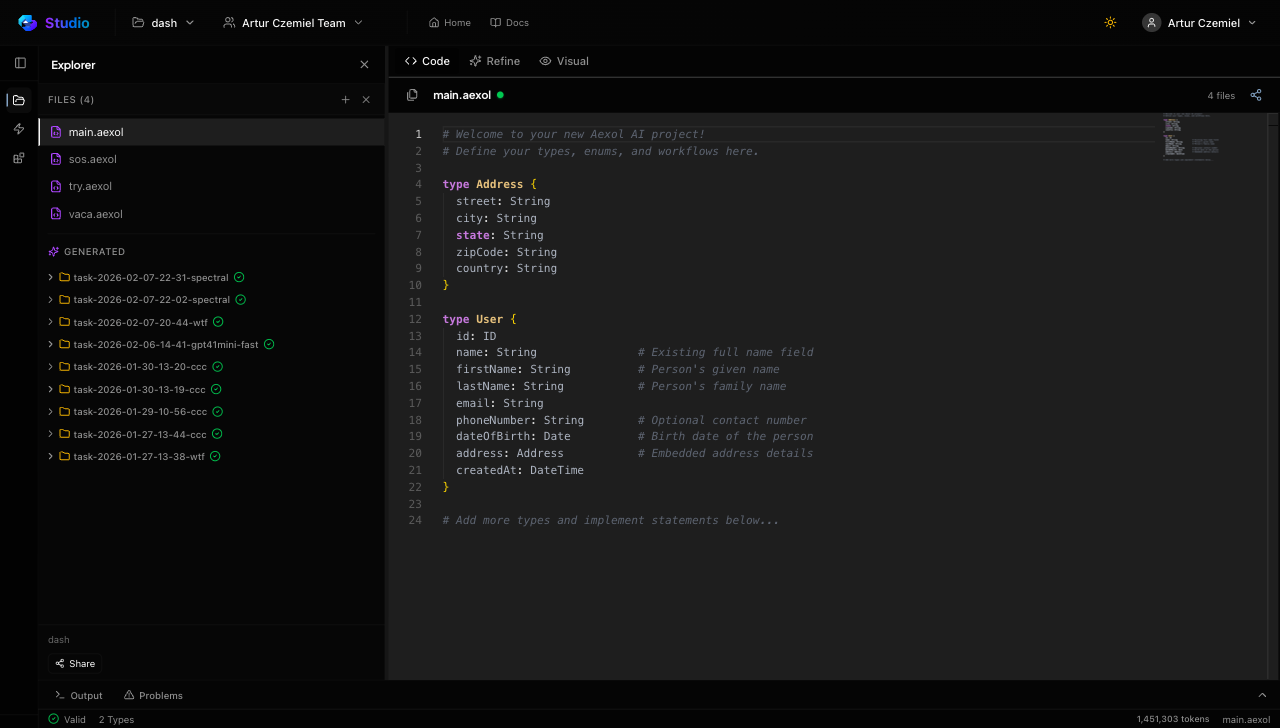
Aexol Studio is a browser-based IDE purpose-built for the Aexol specification language. There's nothing to install — you open it in your browser, sign in, and start building. It combines:
- A code editor with syntax highlighting and real-time validation for
.aexolfiles - AI Import that converts natural language descriptions into Aexol specifications
- Code generation that transforms your specs into production artifacts — GraphQL schemas, Prisma models, TypeScript types, and more
- Project and team management so you can organize work and collaborate
The editor uses a split-view layout: your Aexol code on the left, a live visualization of your spec on the right. You always see both together, which makes it easy to understand how your types, workflows, and agents relate to each other.
Why Spectral?
Spectral is Aexol's first composite AI model, and it's specifically designed for the Aexol ecosystem. Unlike general-purpose language models, Spectral combines multiple frontier models — both open and closed weight — into a unified pipeline that's been fine-tuned for Aexol artifact generation.
Here's what that means in practice:
- ~500 tokens per second — fast enough that code generation feels nearly instant for most specs
- Intelligent task routing — different parts of your generation request are handled by whichever underlying model is best suited for that task
- Aexol-native understanding — Spectral understands the Aexol language grammar, its type system, workflows, agents, and how they map to real code artifacts
- Multi-language output — generate TypeScript, Python, Rust, Go, and more from a single specification
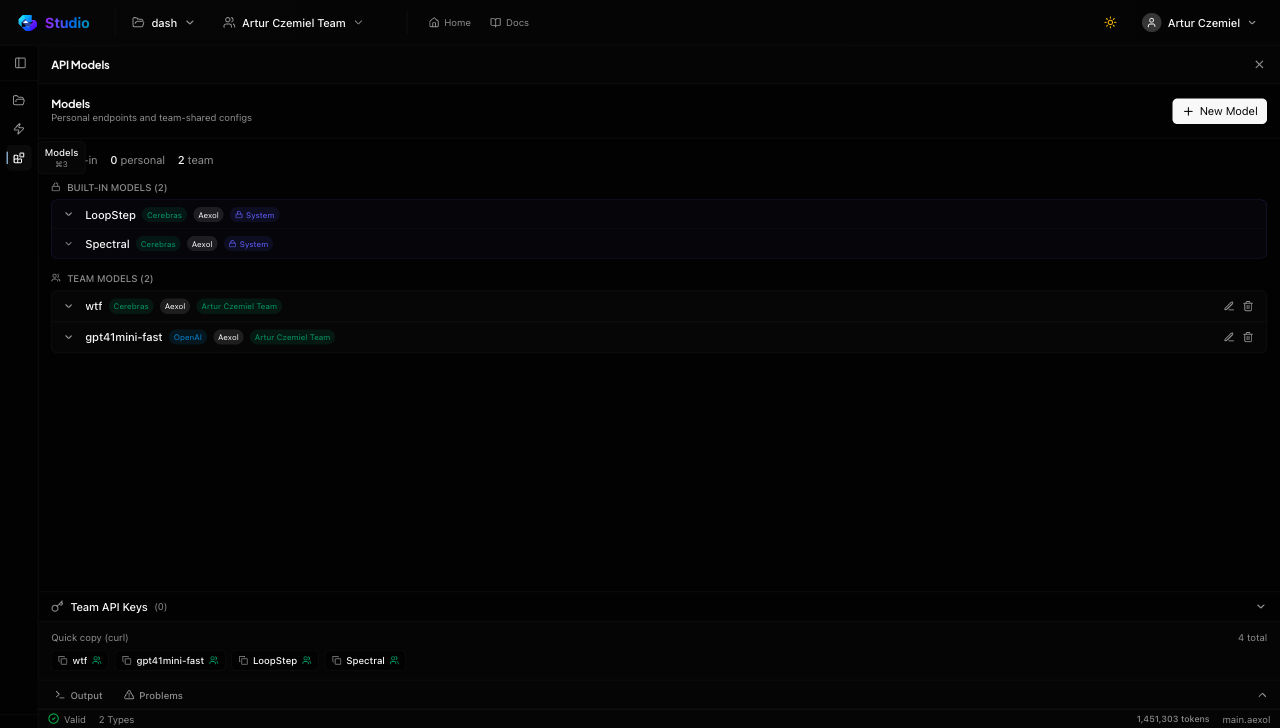
You can select Spectral as your generation model in the Studio's Generate panel.
Setting Up
Getting started takes about a minute:
- Navigate to Aexol Studio in your browser
- Sign in or create a new account
- Complete onboarding — choose a team name and create your first project
That's it. After onboarding, you land directly in the editor with an empty project ready to go.
Tip: You can create additional teams and projects later from their respective pages. Teams let you share projects and manage billing separately for different clients or departments.
Writing Your First Specification
Let's start with a simple example. Say you want to build a task management API. In the editor, create a new .aexol file and write:
type Task {
  title: String
  description: String
  status: TaskStatus
  priority: Priority
  assignee: User
  dueDate: DateTime
}

type User {
  name: String
  email: String
  role: Role
}

enum TaskStatus {
  backlog
  in_progress
  review
  done
}

enum Priority {
  low
  medium
  high
  critical
}

enum Role {
  admin
  member
  viewer
}

workflow TaskFlow {
  initial: backlog
  backlog -> in_progress when started
  in_progress -> review when submitted
  review -> done when approved
  review -> in_progress when changes_requested
}

agent TaskManager {
  "create and assign tasks"
  "update task status"
  "filter tasks by priority and assignee"
}
As you type, the editor gives you:
- Syntax highlighting — keywords, types, and values are color-coded
- Real-time validation — errors appear immediately in the bottom panel
- Live visualization — the right panel updates to show the relationships between your types, workflows, and agents
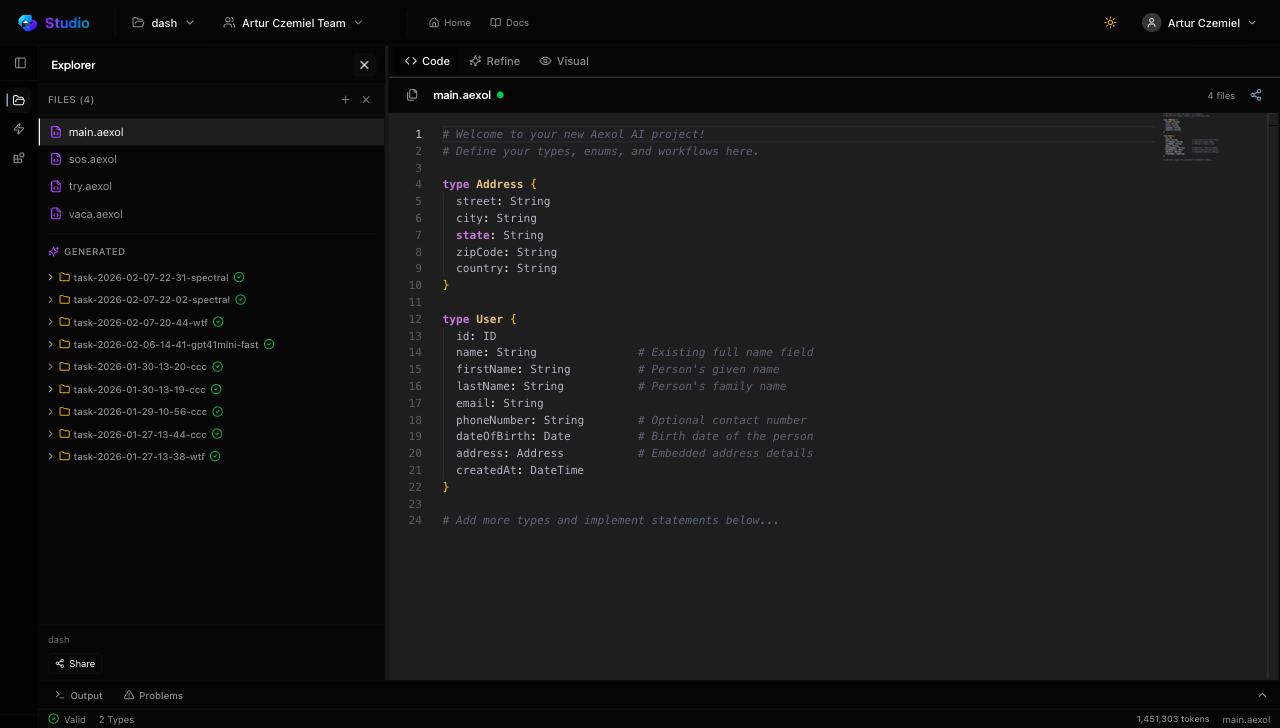
The left sidebar provides quick access to three panels:
| Panel | Shortcut | What It Does |
|---|---|---|
| Explorer | ⌘1 | Browse and manage project files |
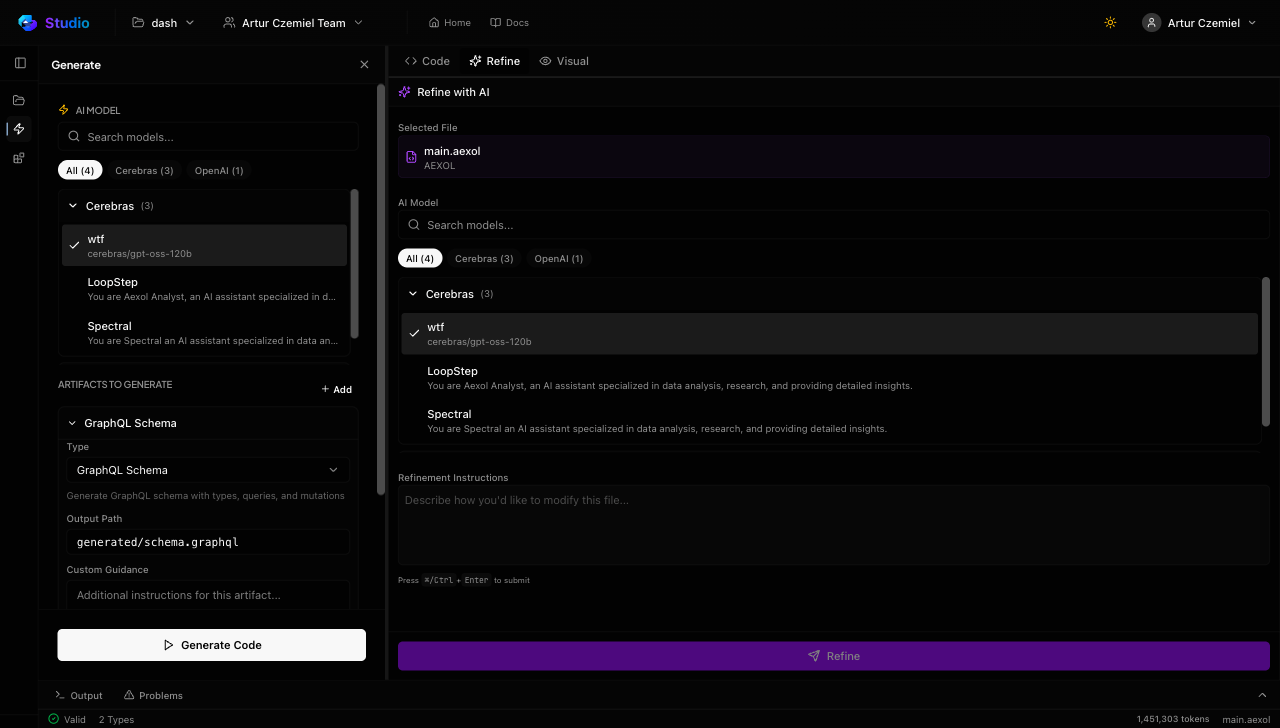
| Generate | ⌘2 | AI-powered code generation |
| Models | ⌘3 | View and configure model endpoints |
Using AI Import
Don't want to write the spec by hand? Use the Define tab to describe what you need in plain English.
Switch to the Define tab (available at /studio?tab=define) and paste something like:
A project management tool for a small engineering team. It should have tasks with titles, descriptions, priorities (low/medium/high/critical), and statuses. Tasks move through a Kanban workflow: Backlog → In Progress → Review → Done. Reviews can be sent back to In Progress if changes are needed. Users have roles: admin, member, or viewer. Admins can manage everything, members can create and update tasks, viewers can only read.
Select Spectral from the model dropdown and click Generate. Within seconds, you'll have a complete Aexol specification in the editor, ready for you to review and refine.
Tip: Be specific in your descriptions. The more detail you provide about types, relationships, and business rules, the better the generated specification will match your intent.
All your previous AI imports are saved and accessible at /studio/from, so you can revisit and iterate on past descriptions.
Generating Code with Spectral
Once your specification is ready, it's time to generate code. Here's the workflow:
- Open the Generate panel by pressing ⌘2 or clicking Generate in the left sidebar
- Select your target language or framework — TypeScript, Python, GraphQL, Prisma, and more
- Choose Spectral as your AI model
- Click Generate
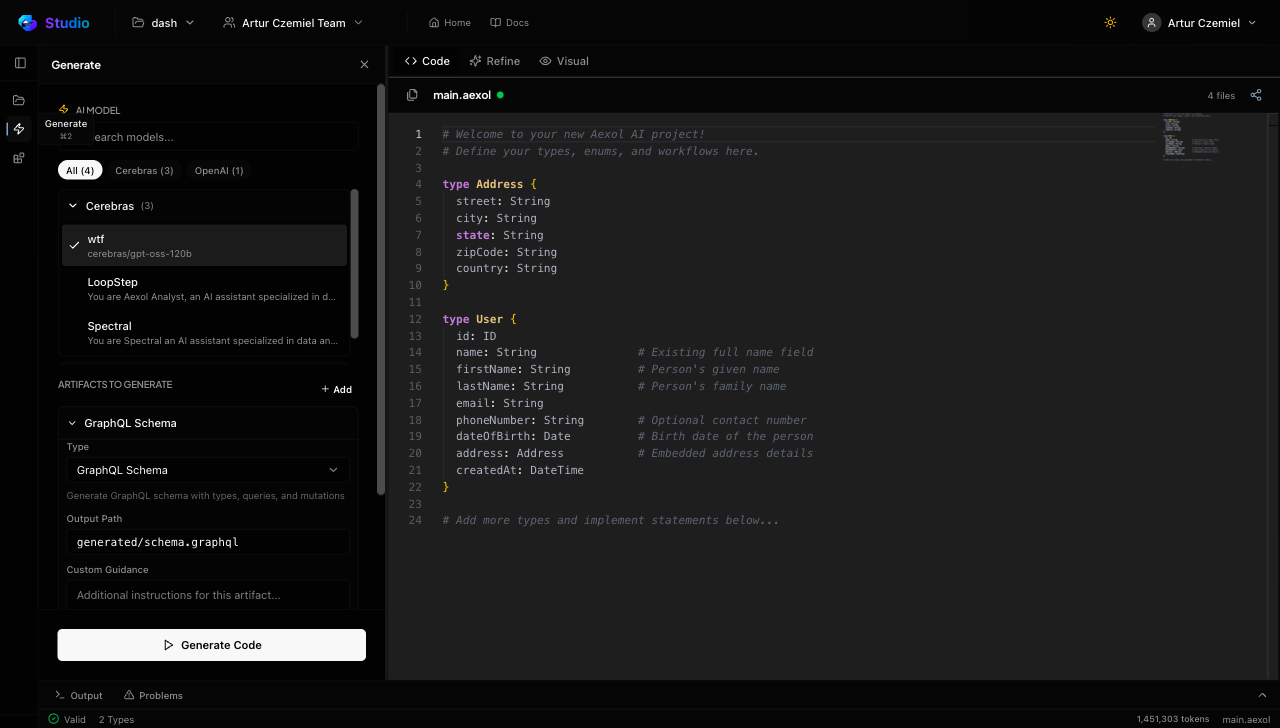
Spectral processes your specification at roughly 500 tokens per second. For a typical spec like the task management example above, you'll see results in just a few seconds.
The generated output appears in the output panel, where you can review each file, copy code, or download everything.
What Gets Generated?
From the task management spec above, Spectral would typically produce:
- GraphQL schema — complete type definitions, queries, and mutations
- Prisma schema — database models with proper relations and enums
- TypeScript types — fully typed interfaces matching your spec
- Resolver stubs — ready-to-implement resolver functions with proper typing
- Workflow logic — state machine implementation for your TaskFlow
All generated code follows best practices for the target language and framework. The output is production-ready — not boilerplate that needs extensive rework.
Iterative Refinement
The first generation rarely needs to be the last. Aexol is designed for an iterative workflow:
- Review the output — check that the generated code matches your expectations
- Refine your spec — add missing fields, adjust relationships, or modify workflows
- Re-generate — Spectral will incorporate your changes and produce updated artifacts
You can also compare outputs across different models. If you've generated code with Spectral and want to see how another model handles the same spec, just switch models and generate again. All generation tasks are logged at /studio/tasks, so you can compare results side by side.
This iterative loop — write, generate, review, refine — is where Aexol really shines. Instead of spending hours hand-writing schemas and types, you spend your time on the high-level design decisions while Spectral handles the implementation details.
Next Steps
Now that you've got the basics down, here are some paths to explore:
- Studio Guide — comprehensive reference for every Studio feature, including teams, billing, and keyboard shortcuts
- Language Reference — deep dive into the Aexol specification language: types, workflows, agents, visitors, roles, and more
- Models — learn more about Spectral's composite architecture and capabilities
- Docs — quick start guide and CLI reference for developers who prefer working locally
- Open Studio — jump in and start building
Happy building.