Aexol Studio paired with the Spectral coding agent gets you from idea to production-ready code in minutes — whether you're a solo developer prototyping a SaaS or a team lead standardizing how your organization defines APIs. Here's the short path.
What Is Aexol Studio?
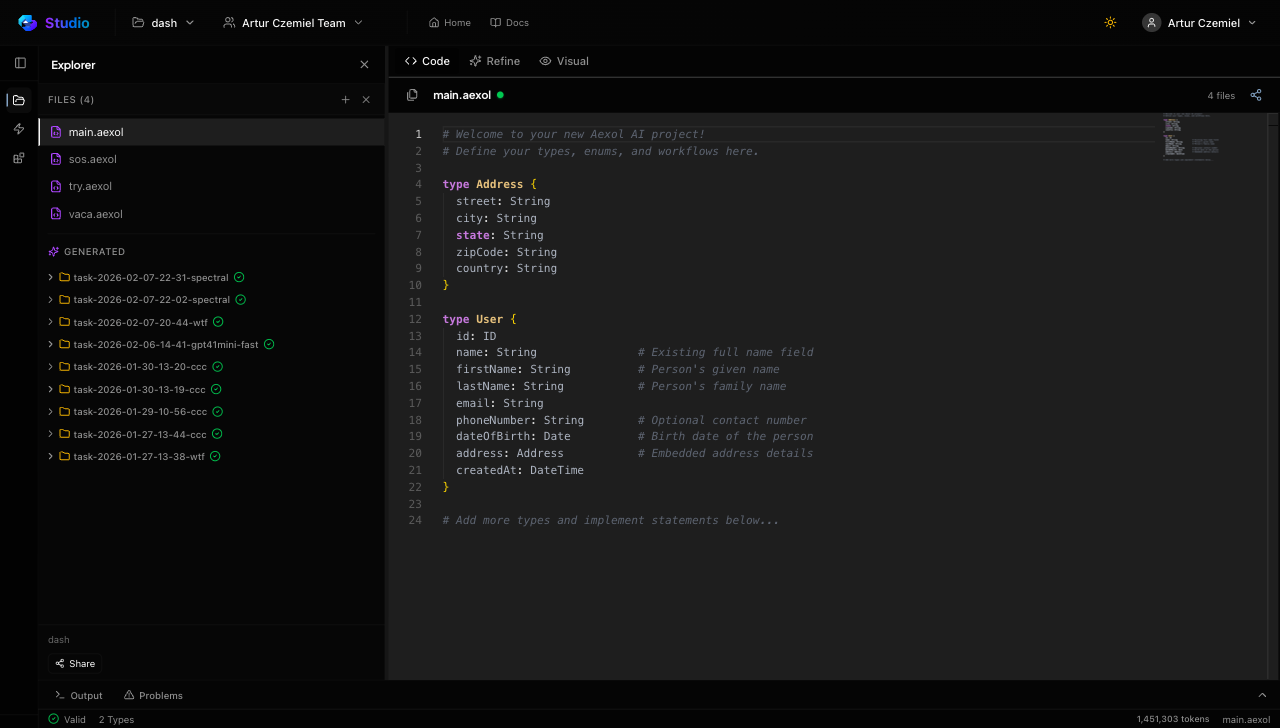
Aexol is a browser-based IDE for the Aexol specification
language — nothing to install. It combines a code editor with real-time
validation for .aexol files, AI Import that turns natural language into
specs, code generation into GraphQL/Prisma/TypeScript artifacts, and project and
team management. The split view shows your code on the left and a live
visualization of your spec on the right:
Why Spectral?
Spectral is the always-on coding agent that turns your .aexol specs into
production code — backend, frontend, and tests — running on your machines:
- Install and run
spectral serve; control generation from any browser tab via the Aexol relay, no port forwarding or SSH - Aexol-native understanding of the grammar, type system, workflows, and how they map to real code artifacts
- Multi-language output: TypeScript, Python, Rust, Go, and more
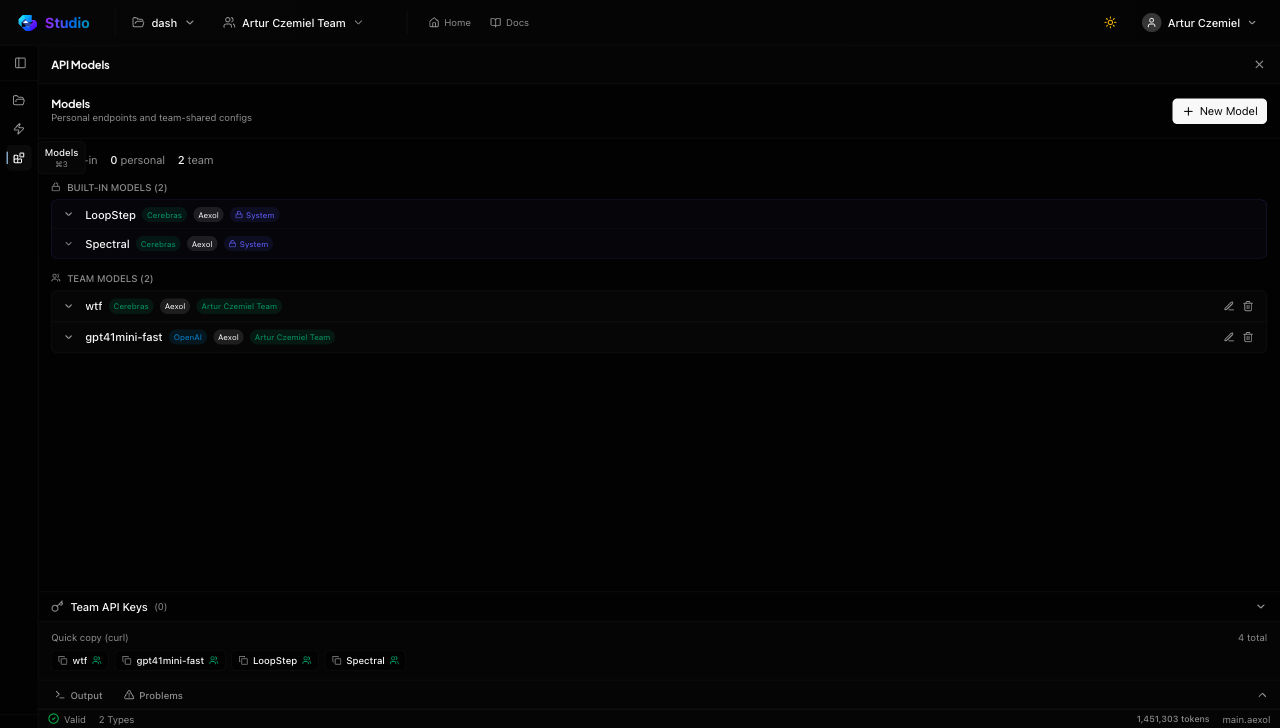
Pick an LLM model in the Generate panel and Spectral runs the pipeline end to end.
Setup and your first spec
Sign in at the agent, complete onboarding, and you land in the editor
with an empty project. Create a .aexol file and describe your domain —
types, enums, workflows, agents:
type Task {
  title: String
  status: TaskStatus
  priority: Priority
  assignee: User
  dueDate: DateTime
}

workflow TaskFlow {
  initial: backlog
  backlog -> in_progress when started
  in_progress -> review when submitted
  review -> done when approved
}
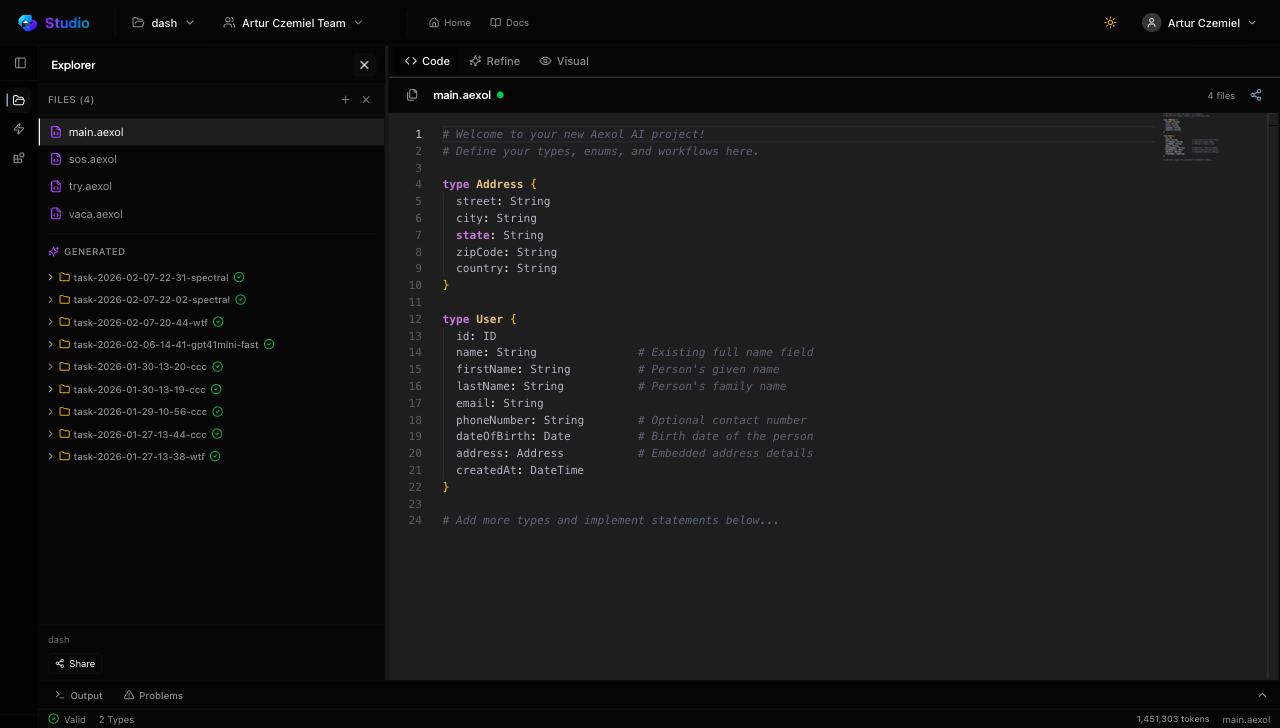
You get syntax highlighting, instant validation in the bottom panel, and a live visualization as you type:
Don't want to write it by hand? The Define tab takes plain English — paste a
description of your app, pick a model, click Generate, and a complete
specification appears in the editor for review. Past imports are kept at
/studio/from.
Generate code
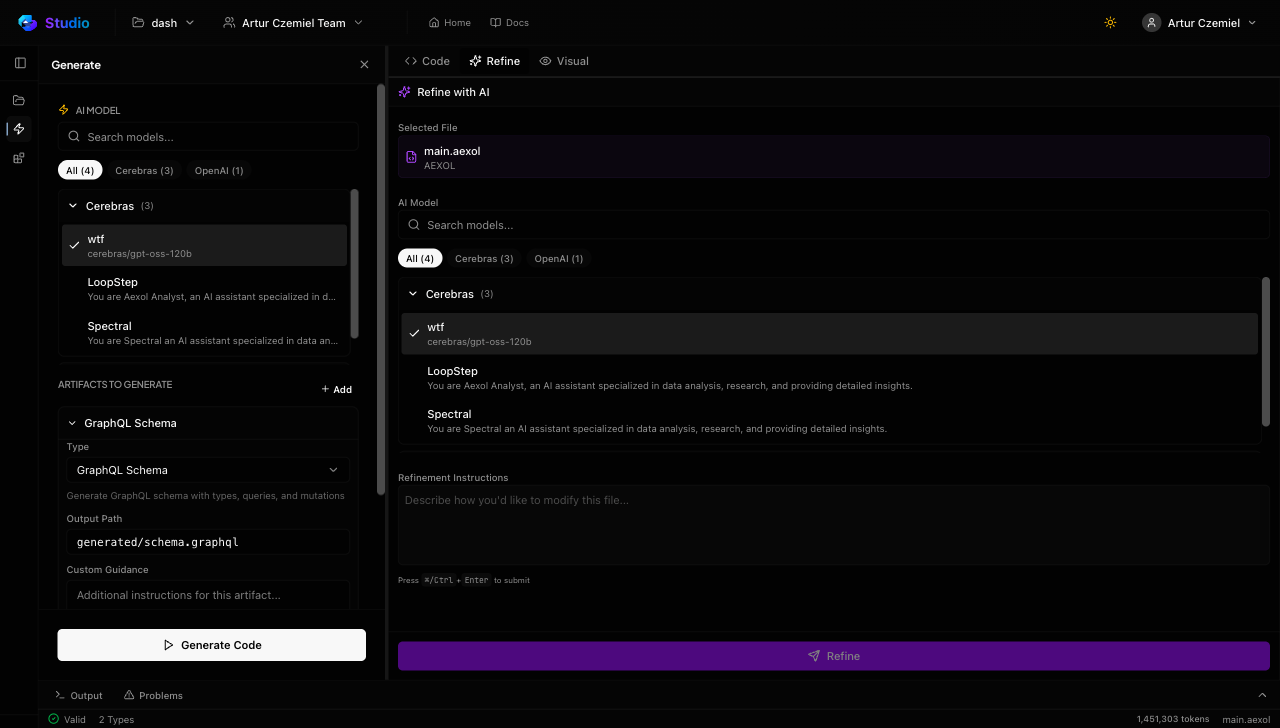
Open the Generate panel (⌘2), pick a target language and an LLM model, click Generate:
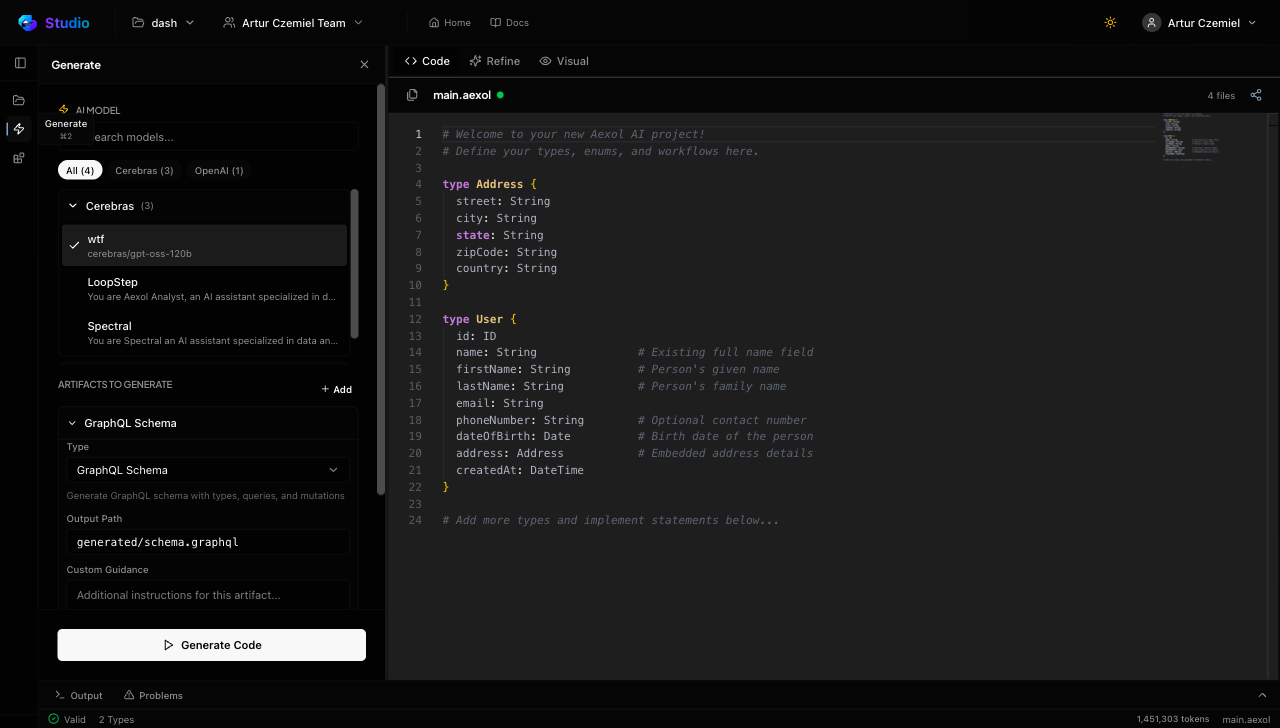
For a typical spec you'll get a GraphQL schema, Prisma models with proper relations, typed TypeScript interfaces, resolver stubs, and workflow state-machine logic — production-ready, not boilerplate.
Iterate
Review the output, refine the spec, re-generate — Spectral incorporates the
changes. You can also switch models and compare results side by side at
/studio/tasks. This loop is where Aexol shines: you spend your time on
high-level design decisions while Spectral handles the implementation.
Next steps: Studio Guide · Language Tutorial · Spectral · Open agent
Happy building.